OPC UA for FlowFuse - FlowFuse Certified Node
Connect a FlowFuse instance to industrial OPC UA servers. Read and write values, monitor changes in real time, call methods, browse the address space, read history, work with files, or host your own OPC UA server, all from within your flows.
This is a FlowFuse Certified Node. FlowFuse vets it for quality, security, and support, and maintains it on an ongoing basis. Read more about Certified Nodes.
Table of contents
- Overview
- Get the certified node in FlowFuse
- The node set
- NodeIds and how to address data
- Configure a connection
- Read
- Write
- Extension Object
- Call
- Monitor
- Monitor Event
- Browse
- Explore
- History Read
- File Operation
- Hosting an OPC UA server
- Network requirements
- Troubleshooting
1. Overview
OPC UA (Unified Architecture) is the leading standard for industrial communication, supported by thousands of devices and systems. This certified node lets a FlowFuse instance act as an OPC UA client and, on self-hosted FlowFuse, as an OPC UA server.
Everything runs inside your FlowFuse instance. Connections, certificates, and credentials live alongside the rest of your flow configuration. Define a connection once and every OPC UA node in the instance shares it. Client and server nodes share a single certificate store, so a trust decision you make for one applies to the other.
Capabilities
- Connect to one or many OPC UA servers, with optional security and authentication.
- Read single values, all attributes, arrays, or values mapped into a structured object.
- Write single values, batches, arrays, matrices, and complex extension-object structures.
- Monitor in real time through subscriptions, with deadband filtering and event/alarm monitoring.
- Call methods to drive device operations.
- Discover the address space through Browse (one level) and Explore (recursive).
- Access historical data — raw, modified, and aggregated.
- Read, write, and append files on servers that implement the OPC UA FileType interface.
- Host an OPC UA server from within a self-hosted FlowFuse instance using Function nodes.
2. Get the Certified Node in FlowFuse
FlowFuse delivers Certified Nodes to your instances as a managed catalogue. The OPC UA package is part of the FlowFuse Edge Certified Nodes catalogue, available as an add-on. contact us to enable it for your team
Installation steps
- Open your instance in the FlowFuse editor.
- Click the menu icon (☰) in the top-right corner.
- Select Manage palette.
- Go to the Install tab.
- Switch to the FlowFuse Edge Certified Nodes category.
- Search for
@flowfuse-certified-nodes/opcua. - Click Install.
The OPC UA nodes then appear in your palette, ready to drag onto the canvas.
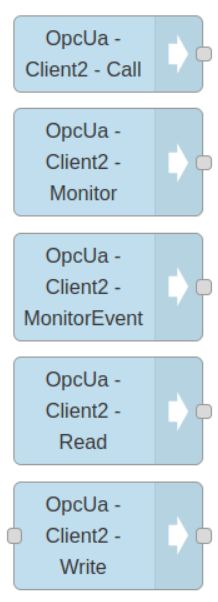
ℹ Note: Existing devices and hosted instances will not see newly added nodes until they are restarted. Restart any instance you plan to install nodes on so it picks up the updated catalogue.
ℹ Note: Keep endpoint URLs, usernames, and passwords in FlowFuse Environment Variables (your instance's Settings → Environment) rather than hard-coding them in nodes. This keeps credentials out of your flow JSON and lets you promote the same flow across instances.
3. The Node Set
Each node performs one OPC UA operation and reuses the shared connection you configure once.
| Node | Purpose |
|---|---|
| OPC UA Client (config) | Defines the server endpoint, security, authentication, subscription parameters, and namespace aliases. Every other node references it. |
| Read | Fetch a value, all attributes, an array of values, or a structured object — on demand, triggered by an input message. |
| Write | Send single values, batches, arrays, matrices, or extension objects to writable variables. |
| Extension Object | Builds a correctly encoded ExtensionObject from a plain JavaScript object before a Write. |
| Call | Invoke a server method with input arguments and receive its output arguments. |
| Monitor | Subscribe to variable value changes and emit a message on each change, with optional deadband filtering. |
| Monitor Event | Subscribe to events and alarms, with server-side Where/Select filtering. |
| Browse | List the references (children) of a single node, one level. |
| Explore | Recursively traverse a subtree and return its structure as JSON. |
| History Read | Retrieve raw, modified, or aggregated historical data over a time range. |
| File Operation | Read, write, append, or size files on servers implementing the FileType interface. |
ℹ Note: Properties of the input message take precedence over a node's own configuration. Configure a node statically, or drive it dynamically from upstream messages.
ℹ Note: Each node reports its state in the editor with a coloured status dot — grey (not connected), blue (operation in progress), green (success), red (failure), and on some nodes (such as History Read) yellow (partial success or quality issues). Watch it alongside the debug sidebar when wiring up a flow.
4. NodeIds and How to Address Data
A NodeId is the unique identifier of a node in a server's address space. It has a namespace index, an identifier type, and an identifier value. The certified node accepts several formats:
| Format | Example |
|---|---|
| Numeric | ns=2;i=1001 |
| String | ns=2;s=TemperatureSetpoint |
| GUID | ns=2;g=12345678-1234-1234-1234-123456789abc |
| Unified (namespace URI) | nsu=http://opcfoundation.org/UA/ADI;i=1234 |
| Browse path | /Objects/2:DeviceSet/3:MyDevice/3:Temperature |
| Aliased browse path | /Objects/di:DeviceSet/ns3:MyDevice/ns3:Temperature |
| Verified browse path | [/2:MyDevice/3:Temperature](ns=1;s=Temperature) |
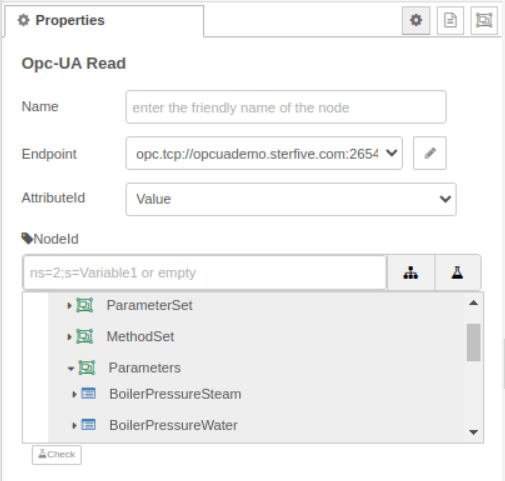
When you give a browse path, the node resolves it against the server's address space and caches the result, so there is only a small one-time cost on the first read or after a reconnect. The cache clears when the connection is re-established, in case the server's address space has changed. Use the flask button to verify a NodeId or browse path; use the ... button to browse the live server. These buttons work only once the endpoint is configured and the flow is deployed.

Clicking the browse (...) button opens the live address space, so you can pick a node visually instead of typing its NodeId:
⚠ Warning: Namespace indexes are not guaranteed stable across servers. If you move a flow between servers, prefer browse paths or the namespace alias table over hard-coded numeric namespace indexes.
Browse path syntax
Every browse path starts with a reference-type separator and then a sequence of browse names. The certified node follows the OPC Foundation Part 4 specification.
- Namespace qualification — every browse name needs a namespace-index prefix (
2:DeviceSet) except names in the standard namespace 0, where the prefix is optional. Omitting a required prefix is the most common cause of a path that won't resolve. - Hierarchical references (
/) — follow any hierarchical reference:/Objects/2:DeviceSet/3:MyDevice/3:Temperature. - Aggregates references (
.) — follow an Aggregates (component/property) reference:/Objects/Server.NamespaceArray. - Specific reference types (
<RefType>) — follow one named reference type:<HasComponent>2:Boiler/<HasProperty>2:Temperature. - Reference-type modifiers —
<#HasComponent>follows only that exact type, not its subtypes;<!HasChild>2:Parentfollows the reference in the inverse direction; a namespace-qualified reference type uses<0:HasProperty>. - Wildcards — omit the final browse name to match all targets of the last step:
/Objects/2:Server/. - Escaping special characters — escape
/ . : & < > # !inside a browse name with a leading&. A node literally namedDevice.NamebecomesDevice&.Name.
Browse path errors
| Status code | Likely cause |
|---|---|
| BadBrowseNameInvalid | A missing required namespace prefix, an unescaped special character, or a case mismatch in a browse name. |
| BadNoMatch | The full path does not exist on the server, or a namespace index is wrong. |
| BadReferenceTypeIdInvalid | A reference type name in the path is unknown or not namespace-qualified. |
ℹ Note: Browse paths are convenient and portable, but resolution has a cost. For variables you read or write frequently, resolve the path once and use the returned NodeId, or use the verified-browse-path format that caches the NodeId alongside the path.
5. Configure a Connection
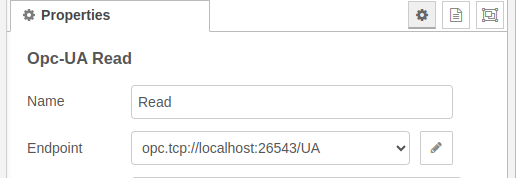
Every OPC UA node depends on a connection defined by the OPC UA Client configuration node. Create it once and reference it through the endpoint field on any node.
-
Drag any OPC UA node (e.g. Read) onto the canvas and double-click to edit it. Every node carries an Endpoint field.
-
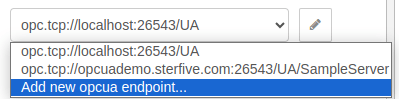
Open the endpoint dropdown and choose add new opcua endpoint, or click
[+].
-
Enter the endpoint URL — for example
opc.tcp://192.168.1.10:4840— and the security and authentication settings. Only theopc.tcp://protocol is supported;http/httpsendpoint URLs are not. -
Click Save, then Done.
-
Click Deploy, then open the debug sidebar to confirm data flows.
ℹ Note: The connection is shared. Changing its parameters affects every node that uses it, and you must redeploy the flow for connection changes to take effect.
Connection editor areas
-
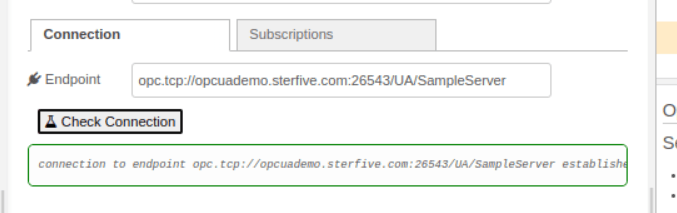
Check the connection — confirm the endpoint is reachable before building on it. A successful test reports the connection as established:
-
Secure connection — choose a security policy and message security mode, then an authentication method.
-
Custom certificate — supply your own certificate and private key when the server requires mutual trust.
-
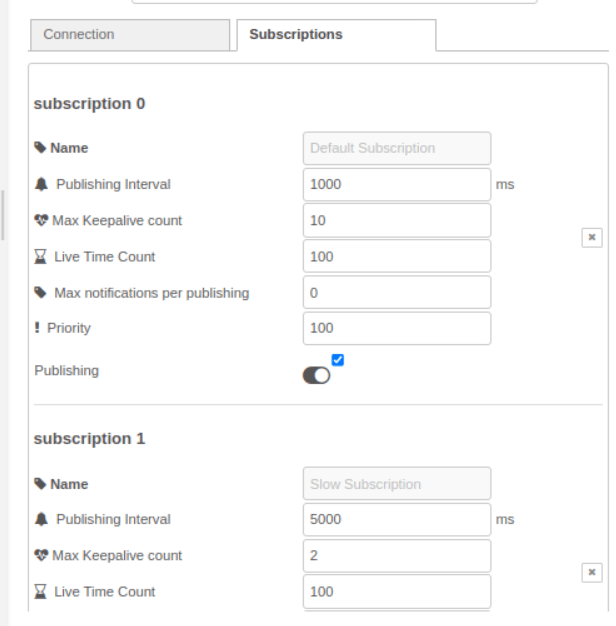
Subscription parameters — set publishing interval, lifetime, keep-alive, max notifications per publish, and priority once; every Monitor and Monitor Event node inherits them. The connection ships with three subscriptions — Default (1000 ms publishing interval), Fast (500 ms), and Slow (5000 ms) — and you can add more for items that need a different publishing rate. The default subscription cannot be deleted, as it also drives keep-alive.
-
Namespace alias table — map a stable short alias to a namespace URI so your NodeIds survive server reassignments. The Extract button reads the server's namespace array and fills the table for you; you can press it again after a server change without losing aliases you already set.
Security policy and message mode
-
Security policy — the cipher suite used to protect the channel. Common values are
None,Basic256, andBasic256Sha256(the modern SHA-256 choice; prefer it over the older SHA-1-basedBasic256). -
Message security mode —
Nonesends messages in cleartext;Signadds integrity (messages are signed but not encrypted);SignAndEncryptadds both integrity and confidentiality. Match the policy and mode the server advertises. -
Authentication — connect anonymously, with a username and password, or with an X.509 certificate. If credentials are wrong or the account lacks rights, the check reports
BadUserAccessDenied: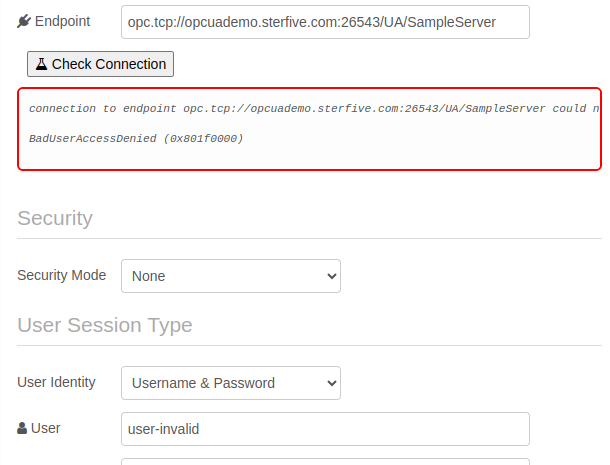
⚠ Warning: A username and password sent over message security mode
Nonetravel in cleartext. Combine credentials with at leastSignmode.
Certificate trust
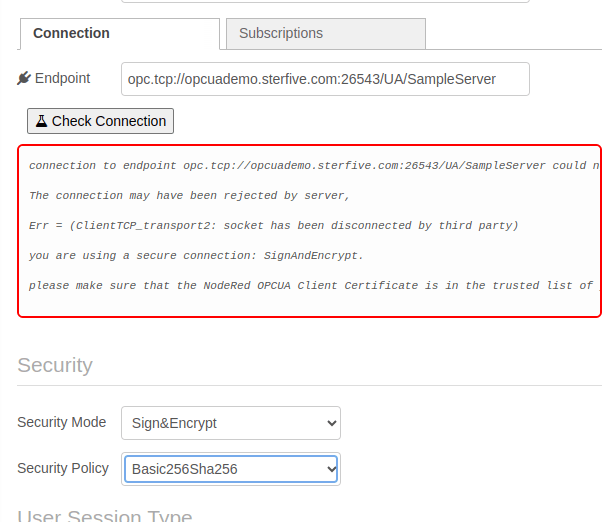
Secure connections rely on mutual certificate trust. By default the client side automatically accepts the server's certificate, so the step that usually needs action is the reverse: the server must trust the client's certificate. For a Sign or SignAndEncrypt connection, download the client certificate from the connection editor (in PEM or DER format) and add it to your OPC UA server's trusted list — otherwise the server refuses the connection.
ℹ Note: Auto-accepting the server certificate is convenient but means the client does not verify the server's identity. To enforce server-certificate validation, set
rejectUnauthorizedtotruein the connection node's global settings. The client then refuses any server whose certificate is not already in its trusted store, so you must add the server's certificate to the client side first.
Client and server nodes in your instance share one PKI store. On FlowFuse it lives under <instance working directory>/opcua-for-flow-fuse/PKI. For trust decisions to survive restarts and redeploys, that directory must be on persistent storage — see Hosting an OPC UA server for the storage details, which apply to client connections too.
If the client certificate is not yet trusted by the server, Check Connection reports the handshake failure and reminds you to add the client certificate to the server's trusted list:
6. Read
The Read node fetches data on demand — it acts only when it receives an input message.
[Inject] → [Read] → [Debug]
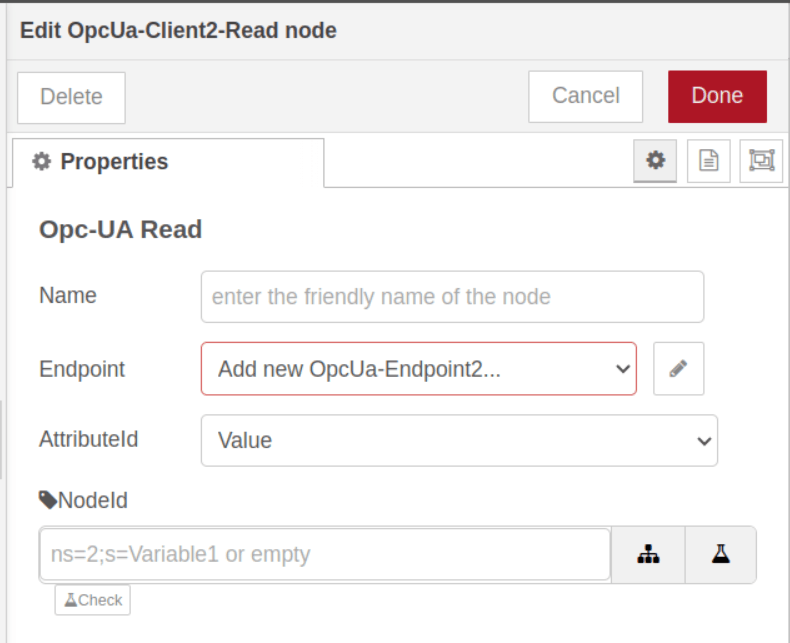
NodeId source (priority order)
msg.nodeIdmsg.topicmsg.payload- The node's configured NodeId
⚠ Warning: A default Inject node sets
msg.payloadto a timestamp, which silently overrides the node's configured NodeId (priority rule 3). To use the node's own configuration, ensure the Inject node does not setmsg.nodeId,msg.topic, ormsg.payload.
Message properties
msg.attributeId— which attribute to read:Value(default),DataType,BrowseName,DisplayName, orAll.msg.outputType—Valuereturns the bare value onmsg.payload;DataValuereturns the full DataValue (value plusstatusCode,sourceTimestamp,serverTimestamp, and picoseconds).
Read modes
- Single value — one NodeId; the value comes back on
msg.payload. - All attributes — set
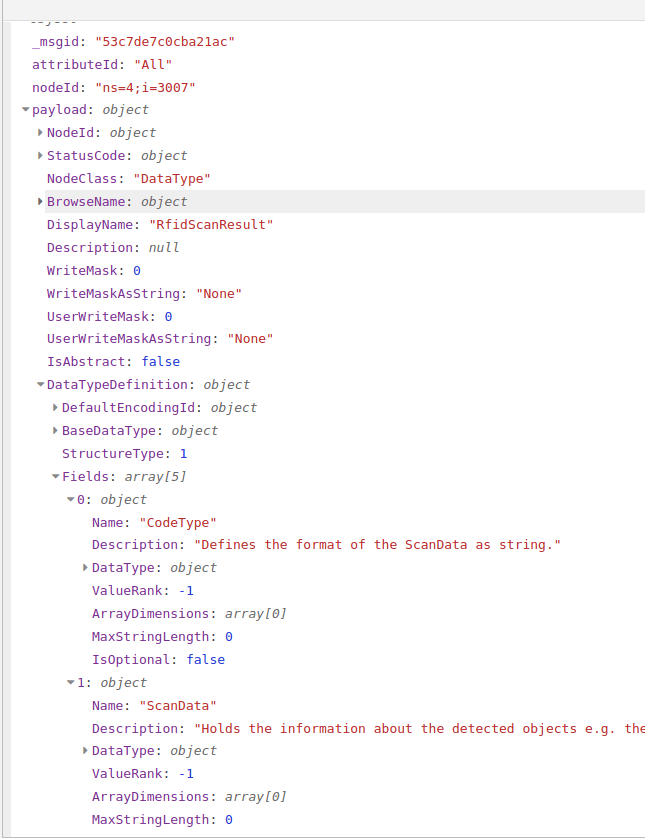
msg.attributeIdtoAllto get every attribute of one node. Reads a single NodeId only — use multiple Read nodes for multiple nodes. The payload then containsnodeId,statusCode,nodeClass,browseName,displayName,description,writeMask/writeMaskAsString,userWriteMask/userWriteMaskAsString,value(with timestamps),dataType/dataTypeName,valueRank,arrayDimensions,accessLevel/accessLevelAsString,userAccessLevel/userAccessLevelAsString, andminimumSamplingInterval. - Multiple values as an array — inject an array of NodeIds via
msg.topics;msg.payloadcomes back as a parallel value array, with a parallelmsg.dataTypearray. Array reads are only available by injecting a message (the node's own config holds a single NodeId). - Multiple values as a structure — inject a JSON object in
msg.topicwhose leaves are NodeIds; the node returns the same shape with values substituted. The Explore node can generate this structure.
Example — read a single value by injecting the NodeId:
msg.topic = "ns=2;s=TemperatureSetpoint";
// msg.payload comes back as the current value
Example — read every attribute of one node:
msg.nodeId = "ns=2;s=TemperatureSetpoint";
msg.attributeId = "All";
Reading All on a structured DataType node returns its full definition — for example the fields of an RfidScanResult extension object:
Example — read several values as an array:
msg.topics = ["ns=1;s=Temperature", "ns=0;s=Pressure"];
msg.attributeId = "Value";
// msg.payload → [23.4, 1.2] ; msg.dataType → ["Double", "Double"]
7. Write
The Write node sends values to writable variables. It determines the target type automatically from the server in most cases.
NodeId source (priority order)
msg.nodeIdmsg.topic- Node configuration
Write modes
- Single value — inject the value as
msg.payloadand the target asmsg.topic(ormsg.nodeId). A successful write reportsstatusCode: "Good". - Explicit data type — set
msg.dataTypewhen automatic conversion is insufficient. Valid values:Boolean,SByte,Byte,Int16,UInt16,Int32,UInt32,Int64,UInt64,Float,Double,String,DateTime,ByteString,Guid,LocalizedText, andExtensionObject. - Variant — send
{ dataType, value, arrayType }for finer control, including arrays. Usedimensionsfor a matrix layout.dataTypeandarrayTypeare optional — the node can infer them from the server. - DataValue — send a full DataValue (
statusCode,sourceTimestamp/serverTimestamp, picoseconds, and a nestedvalue) when you need to set timestamps or quality alongside the value. - Batch write — send an array of write requests in
msg.payload. Returnsmsg.resultswith one status per write. Keep batches under 50–100 items and always inspect individualstatusCodevalues. - Extension objects — use OPC UA JSON encoding. Both the 1.05 encoding (
UaTypeId/UaBody) and legacy 1.04 (TypeId/Body) are supported.
Automatic conversion maps JavaScript values to OPC UA types: integers → Int32/UInt32, decimals → Float/Double, text → String, booleans → Boolean, and arrays → OPC UA arrays. Override it with msg.dataType only when needed.
Example — write a single value:
msg.topic = "ns=2;s=TemperatureSetpoint";
msg.payload = 25.5;   // dataType inferred from the server
Example — batch write several variables in one message:
msg.payload = [
    { nodeId: "ns=2;s=TemperatureSetpoint", value: 25.5 },
    { nodeId: "ns=2;s=PressureSetpoint",    value: 1013 },
    { nodeId: "ns=2;s=EnableFlag",          value: true }
];
// inspect msg.results — one statusCode per write
Example — write a 2×3 matrix using explicit dimensions:
msg.payload = {
    dataType: "Double",
    value: [1, 2, 3, 4, 5, 6],
    arrayType: "Matrix",
    dimensions: [2, 3]   // 2 rows, 3 columns
};
Example — write an extension object using OPC UA JSON encoding, in both the 1.05 and legacy 1.04 forms:
// 1.05 — UaTypeId is a NodeId string, UaBody holds the fields
msg.payload = {
    UaTypeId: "nsu=http://opcfoundation.org/UA/AutoID/;i=3007",
    UaBody: { CodeType: "Ean13", ScanData: { Epc: { PC: 12, UId: "XBASE64d=" } } }
};

// 1.04 (legacy) — TypeId is an object (IdType/Namespace/Id); binary fields use a Buffer
msg.payload = {
    TypeId: { IdType: 0, Namespace: 3, Id: 3007 },
    Body:   { CodeType: "Ean13", ScanData: { Epc: { PC: 12, UId: Buffer.from("Hello") } } }
};
Output message
A Write returns the original payload and nodeId plus the result: statusCode, the dataType actually written, the attributeId, and a message field carrying an error description when the write fails.
Common write status codes
| Status code | Meaning |
|---|---|
| Good | Write succeeded. |
| BadNodeIdUnknown | Variable not found. |
| BadTypeMismatch | Conversion failed — set the correct dataType. |
| BadUserAccessDenied | Account lacks write permission. |
| BadNotWritable | Variable is read-only. |
| BadConnectionClosed | Connection was lost during the write. |
⚠ Warning: Writes to production equipment change real-world state. Gate write nodes behind validation or an operator confirmation step before deploying to a live instance.
8. Extension Object
The Extension Object node builds a correctly encoded ExtensionObject from a plain JavaScript object, so you do not have to hand-encode it for a Write. It queries the server for the target node's DataType definition, constructs the encoded value, and passes it to Write.
[Inject payload] → [Extension Object] → [Write] → [Debug]
Inject a plain JavaScript object as msg.payload; the node encodes it for the server's DataType and emits the ExtensionObject ready for the Write node.
msg.nodeId = "ns=2;s=DeviceConfiguration";
msg.payload = {
    setpoint: 72.0,
    mode: "Auto",
    enabled: true
};
The node also accepts an array of objects and encodes it as an array of ExtensionObjects, detecting the array type from the server's definition.
9. Call
The Call node invokes a server method — a server-side function such as start a batch, reset a counter, or acknowledge an alarm — that takes input arguments and returns output arguments.
Configuration
- ObjectId — the NodeId of the object that owns the method.
- MethodId — the NodeId of the method itself.
- Check button — validates the method and loads its input/output argument definitions. Use the Browse node first if you need to discover an object's methods.
Pass the method's arguments as a named-property object in msg.payload. Override the object and method dynamically with msg.objectId and msg.methodId (these take precedence over the node configuration). Arguments may themselves be arrays or ExtensionObjects. The result carries output arguments on msg.payload, plus a statusCode and the echoed objectId and methodId.
msg.objectId = "ns=2;s=ProcessController";
msg.methodId = "ns=2;s=StartProcess";
msg.payload = {
    processId: "PROC_001",
    targetTemperature: 150.0
};
Example — pass an array argument and an ExtensionObject argument:
msg.payload = {
    setpoints: [25.0, 30.0, 35.0],
    config: { UaTypeId: "ns=2;i=1001", UaBody: { mode: "Auto", limit: 80 } }
};
Method status code categories
| Category | Examples | Retryable? |
|---|---|---|
| Success | Good | — |
| Parameter | BadInvalidArgument, BadArgumentsMissing, BadTypeMismatch, BadOutOfRange | No — fix inputs |
| Method availability | BadMethodInvalid, BadMethodNotCallable, BadNotExecutable | No |
| Security | BadUserAccessDenied, BadNoValidCertificate | No — fix access/certs |
| Communication | BadCommunicationError, BadTimeout, BadServerNotConnected | Yes — retry/back off |
| Server state | BadStateNotActive, BadShutdown | Sometimes |
| Resource | BadOutOfMemory, BadResourceUnavailable, BadTooManyOps | Yes — wait and retry |
10. Monitor
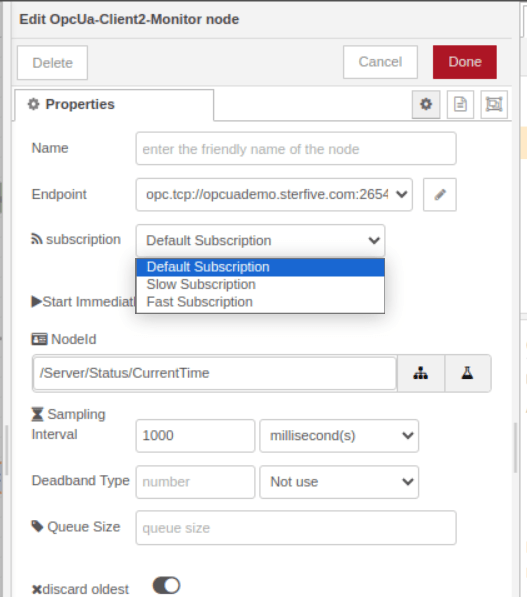
The Monitor node subscribes to variables and emits a message whenever a value changes — no polling. Use Monitor for live data; use Read for occasional on-demand checks.
Concepts
- Subscription — configured on the connection (publishing interval, lifetime, priority). One subscription efficiently carries many monitored items.
- Monitored item — each tracked variable, with its own sampling interval, queue size, and optional filter.
- Notification behaviour — a monitored item notifies only when the value actually changes (per the OPC UA spec), and once at monitoring start: the initial value is always reported.
- Resilience — the Monitor node reconnects automatically after a connection loss and re-establishes its subscription and monitored items, resuming without manual intervention.
ℹ Note: Each notification carries
msg.sequenceNumber. Watch it for gaps to detect dropped notifications — for example when a server-side queue overflows under a heavy change rate.
NodeId source (priority order)
msg.nodeIdmsg.topic- The node's configured NodeId
Modes
- Single variable — configure a static NodeId, or inject one via
msg.nodeIdat runtime to change which variable is monitored without redeploying. To inject, clear the NodeId field and turn off Start Immediately. - Multiple variables (array) — inject an array of NodeIds; the output
msg.payloadis the full array of current values in the same order, re-sent whenever any one of them changes. All items share the subscription's sampling interval. - Named JSON structure — inject a JSON object whose leaf values are NodeIds (the shape Explore produces); notifications arrive in the same shape with current readings.
- Entire subtree — use Explore once (output type
NodeId) to discover all variables under a branch, then feed that structure into Monitor to watch them all live.
Message properties (override node config per message)
msg.outputType—ValueorDataValue.msg.samplingInterval— milliseconds, or0to use the variable's minimum sampling interval.msg.deadbandType—None,Absolute, orPercent.msg.deadbandValue— the deadband threshold.msg.queueSize— server-side queue depth (default 1000).msg.discardOldest— when the queue is full, drop the oldest (true) or the newest (false). Note the message property defaults tofalse, the opposite of the node's Discard Oldest field (which defaults totrue): set it explicitly when injecting to avoid silently discarding the newest values.
Quick start
- Add a Monitor node and select the endpoint and a subscription.
- Enter the NodeId (e.g.
ns=1;s=Temperature). - Enable Start Immediately and deploy. The node emits a message on each value change.
Example — monitor several variables by injecting an array of NodeIds:
msg.payload = [
    "ns=1;s=Temperature",
    "ns=1;s=Pressure",
    "ns=1;s=FlowRate"
];
All items in the array share one subscription, sampling interval, and queue — more efficient than one Monitor node per variable. As a rough guide: under 10 items is trivial, 10–100 is the efficient sweet spot, 100–1000 may need tuned subscription parameters, and beyond 1000 split the work across multiple Monitor nodes.
Deadband filtering
Deadband filtering suppresses insignificant changes — essential for analog values that jitter. The server applies it, so it also reduces network traffic.
| Type | Behaviour |
|---|---|
| None | All changes reported (default). |
| Absolute | Report only when abs(new − lastReported) > value. |
| Percent | Report only when the change exceeds a percentage of the variable's EURange. Requires the variable to expose an EURange property. |
ℹ Note: Deadband compares against the last reported value, not the last sampled value. The initial value is always reported. Use Absolute when a variable has no EURange — Percent silently does nothing without one.
11. Monitor Event
The Monitor Event node subscribes to events and alarms rather than value changes — alarm activations, state transitions, audit/security events, and system notifications.
Filtering
- Where Clause — a server-side filter selecting which events to receive. Far more efficient than post-filtering in a Function node.
- Select Clause — comma-separated fields to retrieve (e.g.
EventId, Time, Message, Severity). The...button opens a graphical selector that browses the event type hierarchy. Request only the fields you use — smaller messages, less processing. Common sets: basicEventId,Time,Message,Severity; alarms addSourceName,ActiveState,AckedState; audits addActionTimeStamp,ClientUserId.
Match the subscription to the event rate: a slower publishing interval suits alarms and audits, a faster one suits high-frequency process events. For mixed workloads, use separate Monitor Event nodes on different subscriptions (see Configure a connection) so critical alarms don't queue behind noisy low-priority events.
Where Clause syntax
Filter on the standard event fields (EventId, EventType, SourceName, Time, Message, Severity):
- Type filtering —
ofType('AlarmConditionType') - Numeric comparison —
Severity >= 700 - String equality —
SourceName = "Reactor1" - Boolean fields —
ActiveState = true - Combine with
AND/OR—ofType('AlarmConditionType') AND Severity >= 700
Common syntax mistakes: quote type names (ofType('AlarmConditionType'), not ofType(AlarmConditionType)); use >= not =>; and use AND/OR, not &&/||. Restrict the Where Clause to standard fields — type-specific fields belong in the Select Clause, not the filter.
Event type hierarchy and severity
Events derive from BaseEventType, with SystemEventType, AuditEventType, and AlarmConditionType (and alarm subtypes such as LimitAlarmType and DiscreteAlarmType) beneath it. The Select Clause fields available depend on the event type — alarms expose ActiveState, AckedState, ConfirmedState, and Retain; audit events expose ActionTimeStamp, Status, and related fields.
Severity runs from 1 (informational) to 1000 (critical). A rough scale: 1–200 low/informational, 201–400 minor, 401–600 noteworthy, 601–800 important warnings, 801–1000 critical. A common production filter is Severity >= 600. To capture all server events, monitor the Server object at i=2253 with an empty Where Clause.
Example — monitor all server events:
NodeId:        i=2253
Where Clause:  (empty)
Select Clause: EventId,EventType,SourceName,Time,Message,Severity
ℹ Note: If no events arrive, verify the server supports events (read the object's
EventNotifierattribute — a non-zero value means it emits events), point the NodeId at an event-generating object (tryi=2253), and clear the Where Clause. If too many arrive, tighten the Where Clause by type and severity, or point at specific equipment instead of the Server object.
12. Browse
The Browse node lists the references of one node — one level of the address space. Specify the node with msg.nodeId or msg.topic.
Configuration options
- NodeId — the node whose references to list.
- ReferenceTypeId — which reference type to follow, chosen from the reference-type hierarchy (e.g.
HasComponent). - IncludeSubType — follow only the exact type (
false) or also its subtypes (true). - BrowseDirection — forward, inverse, or both.
- Node Class Mask — return only targets of selected node classes: Object, Variable, Method, ObjectType, VariableType, ReferenceType, DataType, View.
- Result Mask — which fields to return: ReferenceType, IsForward, NodeClass, BrowseName, DisplayName, TypeDefinition. The NodeId is always included regardless of the mask.
Any of these can be overridden per message (for example msg.referenceTypeId), so a single Browse node can serve different queries driven from upstream.
msg.nodeId = "ns=0;i=85"; // the Objects folderThe node returns the node's direct children on msg.payload — each entry carries the fields selected in the Result Mask, for example:
[
    { "nodeId": "ns=2;s=DeviceSet",  "browseName": "DeviceSet",  "nodeClass": "Object" },
    { "nodeId": "ns=2;s=Boiler",     "browseName": "Boiler",     "nodeClass": "Object" }
]
Browse is also how you discover a method's owning object and arguments before configuring a Call node: browse the object for HasComponent references of node class Method.
13. Explore
The Explore node recursively traverses a subtree and returns the whole structure as a JSON object — unlike Browse, which shows a single level.
Features
- Recursive traversal of an entire subtree in one operation.
- Multiple output types for leaf variables (see below).
- Depth control, exclusion of empty nodes, and selection of which references to follow.
- Output that feeds directly into the Monitor node and the Read-as-structure mode.
Traversal stops at variable nodes: the explorer reads each variable (returning the selected output type) and does not recurse into a variable's own children. To inspect a variable's children, start an Explore directly on that variable node.
Output types
The output type sets what each leaf variable returns:
| Output type | Returns | Typical use |
|---|---|---|
| Value | Current values | Display, analysis, dashboards |
| NodeId | Node identifiers | Wiring into Monitor / Read / Write |
| DataValue | Values with quality and timestamps | Quality checks, freshness validation |
| Variant | Value with its data-type information | Typed values without full quality/timestamp metadata |
| StatusCode | Quality only (Good/Bad/Uncertain) | Health checks, finding bad sensors |
| BrowsePath | Full browse paths with namespace indices | Documentation, technical reference |
| AliasedBrowsePath | Simplified dotted paths | Human-readable references, config files |
| NSUNodeId | NodeIds with namespace URIs | Cross-server / portable configurations |
Scope controls
- followOrganizes —
truefollowsOrganizes,HasProperty, andHasComponent(complete equipment discovery);falsefollows onlyHasProperty/HasComponent(direct properties). - excludeEmpty — set
msg.excludeEmpty = trueto drop branches that contain no variables, for cleaner output. - Depth — Explore follows the full hierarchy under the start node (default maximum depth 10). Rather than a depth setting, control scope by choosing a more specific start NodeId: roughly 2–3 levels for one piece of equipment, 4–6 for a production line, 7–10 for a whole plant.
⚠ Warning: Starting Explore at the Objects folder (
ns=0;i=85) or another root node traverses the entire server and can return a very large structure. Start from a specific NodeId (or/Server/ServerStatusif you are just getting your bearings) and expand scope deliberately.
Example — exploring /Server/ServerStatus with output type NodeId returns a nested object whose leaves are the NodeIds of each variable:
{
    "StartTime":   "ns=0;i=2257",
    "CurrentTime": "ns=0;i=2258",
    "State":       "ns=0;i=2259",
    "BuildInfo": {
        "ProductName":     "ns=0;i=2263",
        "SoftwareVersion": "ns=0;i=2264"
    }
}
Common pattern — explore to monitor
Explore a subtree once to discover all its variables, then feed that structure straight into a Monitor node — Monitor returns the same shape with each leaf replaced by its live value.
[Inject] → [Explore] → [Monitor] → [Debug]
ℹ Note: Address spaces rarely change, so cache the Explore result (with a timestamp) and reuse it rather than re-exploring on every deploy. Re-explore periodically only if your server adds or removes variables at runtime.
14. History Read
The History Read node retrieves historical data from servers that store it — the basis for trends, shift reports, audits, and incident investigation.
History types
- Raw — the raw historical values stored on the server.
- Raw Modified — raw values that have since been edited or corrected, with modification tracking.
- Processed Details — server-side aggregates over a processing interval (set the Aggregate Type).
Key options
- Start Time / End Time — absolute (ISO 8601, e.g.
2024-11-20T08:00:00Z, with optional timezone offset) or relative (now,1 hour ago,30 minutes ago,7 days ago). - Processing Interval — the aggregation bucket for Processed Details:
30 seconds,5 minutes,1 hour,1 day,1 week. - numValuesPerNode (
msg.numValuesPerNode) — cap on values returned per node (default 100). - returnBounds (
msg.returnBounds) — include the bounding values just outside the time range, for continuous trends.
The NodeId follows the usual priority (msg.nodeId → msg.topic → msg.payload → node config). Multiple variables can be read by injecting an array of NodeIds.
Aggregate types (Processed Details)
Average, Count, Delta, DeltaBounds, DurationBad, DurationGood, Interpolative, Maximum, Minimum, PercentBad, PercentGood, Range, StandardDeviationPopulation, StandardDeviationSample, Total, VariancePopulation, VarianceSample, WorstQuality.
Output types
- Time+Value —
{ value, sourceTimestamp }per point. - Time+Variant — adds the full Variant (
value: { dataType, value }). - DataValue — adds
statusCodeandserverTimestamp. - StatusCode — quality only.
- DataValueReversible — DataValue with reversible encoding.
msg.payload is an array of points, and the node echoes the request (nodeId, startTime, endTime) alongside it. Always check each point's statusCode and filter out bad-quality points before charting or reporting. On failure the payload is an empty array carrying a top-level statusCode and a message; an empty array with a Good status simply means no data exists in the requested range — distinguish the two before treating it as an error.
msg.startTime = "1 hour ago";   msg.endTime = "now";                          // last hour, raw
msg.startTime = "7 days ago";   msg.processingInterval = "1 day";             // daily averages (Processed Details + Average)
msg.startTime = "2024-11-20T08:00:00Z";  msg.endTime = "2024-11-20T17:00:00Z"; // explicit range
Status codes
| Status code | Meaning |
|---|---|
| Good | Data retrieved. |
| BadHistoryOperationUnsupported | The server does not store history. |
| BadNodeIdUnknown | Variable not found. |
| BadHistoryOperationInvalid | Invalid history parameters. |
| BadTimestampsToReturnInvalid | Invalid timestamp specification. |
| BadMaxAgeInvalid | Invalid time range specified. |
ℹ Note: Keep time ranges and
numValuesPerNodebounded, prefer aggregation to thin large ranges for charts, and verify the server supports history before relying on it. For very long ranges, chunk the request into smaller windows.
15. File Operation
The File Operation node reads and writes files on servers implementing the OPC UA FileType interface (ns=0;i=11575) — useful for recipes, configurations, and logs. The NodeId may be a standard NodeId or a browse path (e.g. /ns1:Logs/ns1:system.log), set in the node or via msg.nodeId.
Modes
| Mode | Use |
|---|---|
| Read | Read file contents. |
| ReadSize | Return the file size in bytes on msg.payload. |
| Write (a.k.a. WriteEraseExisting) | Create or overwrite a file. An object/array payload is auto-converted to JSON; booleans/numbers become strings. |
| WriteAppend | Append data to an existing file. End the payload string with \n for log lines. |
Encoding and format
- Encoding (read/write) —
none(raw binary, default),setbymsg(usemsg.encodingat runtime),utf8,ascii,utf-16le,Shift_JIS,EUC-JP,GB2312,GBK,Big5, plus many regional Windows / ISO / IBM / Mac / KOI8 encodings. - Format (read only) —
buffer(raw Buffer, default),utf8(decoded string), orlines(array split on newlines, ideal for CSV).
For text, pair encoding: utf8 with format: utf8; for binary files (images, PDFs, executables) use encoding: none with format: buffer. The node chunks large files automatically based on the server's MaxByteStringLength and transport limits, so there is no practical size cap beyond the server's own.
Output and status
Read returns content on msg.payload (Buffer, string, or string array per the Format). A write returns the byte count on msg.size. The node status shows Operating during transfer, size = X on success, and failed on error (details in the debug panel).
msg.nodeId = "ns=2;s=RecipeFile";
msg.payload = "appended log line\n";   // WriteAppend mode
Safe write patterns
- Create-or-update — run a
ReadSizefirst, then branch on the result: route toWritewhen the file is missing and toWriteAppendwhen it already exists. - Atomic write — write to a temporary file, then rename it over the target once the write succeeds, so a failure mid-write cannot corrupt the original.
File operation errors
| Error | Cause |
|---|---|
nothing to write |
msg.payload is empty or undefined. |
expecting a nodeIdString |
Invalid NodeId format. |
| BadNodeIdUnknown | File not found — for WriteAppend, create it first with Write. |
| BadNotWritable / BadUserAccessDenied | File is read-only or your account lacks permission. |
ℹ Note: Use the Browse node to discover available File objects, and the Read node to inspect file metadata such as
Size,OpenCount, andUserWritable. Garbled text usually means the wrong encoding — try a different one.
16. Hosting an OPC UA Server
On self-hosted FlowFuse, the certified node can run an OPC UA server inside your instance using only Function nodes — no settings.js edit, no external module declaration, no extra npm install.
⚠ Important: Server hosting is not supported on FlowFuse Cloud — Cloud exposes HTTP/HTTPS only and cannot expose the arbitrary TCP port (
opc.tcp://) a server needs. Use a self-hosted FlowFuse instance and ensure the chosen port is reachable through your container and network configuration.
When the palette loads, it publishes a bootstrap helper in the Node-RED global context. Retrieve it and destructure { bootstrap, opcua }: bootstrap carries the server helpers and opcua re-exports the full node-opcua namespace. This works even with functionExternalModules: false.
ℹ Note:
global.get("sterfive")below is the literal runtime key the certified node exposes. Keep it exactly as written in your Function nodes, or the code will not find the helper.
Basic pattern
Two Function nodes share live variables through flow context: one boots the server once on deploy, the other updates a variable's value at any time without restarting.
[Inject once after deploy]  →  [Boot Server]   →  [Debug]
[Inject value]              →  [Update Value]
Boot Server calls bootstrapServer({...}). The helper is idempotent — the same config reuses the running handle; a changed config tears down and rebuilds. It runs onPopulate exactly once on first build and registers SIGINT/SIGTERM/exit handlers for clean shutdown, so you do not add your own. Update Value writes new values with setValueFromSource(), which does no I/O and is safe to call thousands of times per second.
// Boot Server
const { bootstrap, opcua } = global.get("sterfive");
const { bootstrapServer } = bootstrap;

const handle = await bootstrapServer({
    port: 4840,
    endpoint: "node-red-server",
    nodesets: ["standard"],
    onPopulate: (addressSpace, exposed) => {
        const ns = addressSpace.getOwnNamespace();
        const device = ns.addObject({ organizedBy: "ObjectsFolder", browseName: "Device001" });
        exposed.temperature = ns.addVariable({
            componentOf: device,
            browseName: "Temperature",
            nodeId: "s=Temperature",
            dataType: "Double",
        });
        exposed.temperature.setValueFromSource({ dataType: opcua.DataType.Double, value: 20.0 });
    }
});
flow.set("$opcuaHandle", handle);
// Update Value
const handle = flow.get("$opcuaHandle");
handle.exposed.temperature.setValueFromSource({
dataType: "Double",
value: msg.payload
});ℹ Note: Keep the handle in flow context, never in a local
const/let— a Function node's body re-runs on every message. Prefix context keys with$(e.g.$opcuaHandle) and avoid the bare keyopcua(it collides with other vendors), dotted keys (Node-RED reads them as nested paths), and colon-separated keys. Put construction-time options (port,nodesets, security,users) only in the Boot node, never in the Update node.
Key bootstrapServer options
| Option | Description |
|---|---|
port |
TCP port to listen on (default 4840). |
endpoint |
Endpoint name string. |
applicationName / productUri |
Identity strings the server advertises. |
nodesets |
Built-in names ("standard", "di", "autoId", "machinery", "ia") or absolute paths to .NodeSet2.xml files. |
securityPolicies |
Array of SecurityPolicy values (e.g. None, Basic256Sha256). |
securityModes |
Array of MessageSecurityMode values (None, Sign, SignAndEncrypt). |
allowAnonymous |
Allow anonymous sessions (default true). |
users |
Array of { username, password, roles } objects. |
discoveryServerEndpointUrl |
Discovery-server (LDS) registration setting — advanced. |
registerServerMethod |
Discovery-server (LDS) registration setting — advanced. |
shutdownTimeoutMs |
Grace period for clean shutdown. |
onPopulate |
Callback run once when a new server is built — add your variables, objects, and methods here. |
forceRebuild |
Set true to rebuild without a config change (e.g. after editing the trust store). |
ℹ Note: The server's identity is a config hash of
port,endpoint,applicationName,productUri,nodesets,securityPolicies,securityModes,allowAnonymous, andusers. Change any of these and the next deploy rebuilds the server (re-runningonPopulate).onPopulateandforceRebuildare excluded from the hash, so editingonPopulatealone does not trigger a rebuild — useforceRebuild: trueif you need one.
Adding methods
All address-space construction must happen inside onPopulate — it runs exactly once on a fresh build, never on a same-config redeploy. Do not put addObject or addMethod calls in nodes that handle every message; they throw on a duplicate browseName and pile up across redeploys.
const resetMethod = ns.addMethod(device, {
    browseName: "Reset",
    inputArguments: [],
    outputArguments: [],
});
resetMethod.bindMethod(async (_inputArguments, _context) => {
    exposed.temperature.setValueFromSource({ dataType: opcua.DataType.Double, value: 20.0 });
    return { statusCode: opcua.StatusCodes.Good, outputArguments: [] };
});
Cleaning up timers
If onPopulate starts intervals or timeouts, register them with the address space so they stop automatically on shutdown. Otherwise they fire against a disposed address space and cause 'AddressSpace has been disposed' on the next deploy.
const timerId = setInterval(() => {
    sensor.setValueFromSource({ dataType: "Double", value: Math.random() });
}, 250);
addressSpace.registerShutdownTask(() => clearInterval(timerId));
Structured namespaces and companion specifications
Organise large address spaces with folders and objects (addressSpace.getOwnNamespace().addFolder(...), addObject(...)), and prefer string NodeIds (nodeId: "s=DeviceA.Speed") so subscribers stay stable. For a scalable Update node, key your variables by msg.topic and look them up with handle.addressSpace.findNode("ns=1;s=...") rather than adding a Function node per variable.
To expose standard companion-spec types (DI, Machinery, AutoID/RFID, IA), load the nodesets, then instantiate their object types inside onPopulate:
const nsDI = addressSpace.getNamespaceIndex("http://opcfoundation.org/UA/DI/");
const deviceType = addressSpace.findObjectType("DeviceType", nsDI);
const device = deviceType.instantiate({
    organizedBy: addressSpace.rootFolder.objects,
    browseName: "MyDevice",
    optionals: ["SerialNumber"],
});
Access a component of an instantiated type with device.getComponentByName(name, namespaceIndex) — pass the namespace index, since the same browse name can exist in several namespaces. For composite extension-object values (for example an RfidScanResult), build the value with addressSpace.constructExtensionObject(dataTypeNode, fields), then write it with setValueFromSource({ dataType: opcua.DataType.ExtensionObject, value: extObj }).
Load companion nodesets in dependency order (AutoID needs DI, MachineTool needs Machinery, and so on); the helper reports a clear validation error if a dependency is missing.
Large variable sets
When populating thousands of variables, enable addressSpace.isFrugal = true during construction to skip reverse-reference materialisation and cut memory overhead. Re-enable normal mode before adding nodes that need full bidirectional references (type instances, browsable methods).
addressSpace.isFrugal = true;
for (let i = 0; i < 5000; i++) {
    ns.addVariable({ componentOf: dataset, browseName: `Var${i}`, dataType: "Double" });
}
addressSpace.isFrugal = false;
High-frequency variables
For variables that change faster than clients need to sample, set minimumSamplingInterval (ms) to hint the server's fastest meaningful sample rate and stop clients requesting sub-millisecond rates. For values that update sub-millisecond in your code, batch externally — call setValueFromSource once per tick (e.g. every 50 ms) rather than from a tight loop.
ns.addVariable({
    browseName: "FastSensor",
    nodeId: "s=FastSensor",
    dataType: "Double",
    minimumSamplingInterval: 50,   // 50 ms = 20 Hz maximum
    value: { dataType: "Double", value: 0 },
});
Multiple servers in one instance
bootstrapServer accepts an optional second ownerKey argument. Without distinct keys, a second call tears down the first server. Each server must bind a different port and use a different flow-context key.
const handleAlpha = await bootstrapServer({ port: 4840, endpoint: "alpha" }, "alpha");
const handleBeta  = await bootstrapServer({ port: 4841, endpoint: "beta"  }, "beta");
Beyond roughly five servers per instance, prefer separate processes; the event loop becomes the bottleneck before the OPC UA stack does.
User authentication
Authentication is declarative through the users array. Each entry has a username, a password, and roles. The helper bcrypt-hashes clear-text passwords at boot and maps role names to their NodeIds; a value already in bcrypt form ($2a$/$2b$/$2y$ prefix) is passed through verbatim. The users array controls only session activation — per-node authorization comes from each variable's access-level attributes combined with role mapping. Set allowAnonymous: false to refuse anonymous sessions. The helpers bootstrap.ensureBcryptHash(plain) and bootstrap.isBcryptHash(hash) are available for tooling.
⚠ Warning: If you omit
users, the helper installs a default test set (root/secret,gdsadmin/admingds,user1/password1,user2/password2) intended only for development. Always set your ownusersfor any instance reachable beyond your development machine.
Security, certificates, and PKI storage
Enable secure endpoints with securityPolicies and securityModes; the server advertises the cartesian product of allowed (policy, mode) pairs as separate endpoints. A self-signed server certificate is generated on first boot, or you can provision a CA-issued one. A client connecting over a secure mode for the first time lands its certificate in the rejected folder — move it to trusted and subsequent connections succeed. Every server also installs the push-certificate-management service for over-the-wire certificate rotation.
On FlowFuse, the node stores its PKI (its own certificate, the trusted list, and the rejected list) under <instance working directory>/opcua-for-flow-fuse/PKI. For this to survive restarts and redeploys, that directory must be on persistent storage: on container-based FlowFuse (Cloud, Kubernetes, Docker) this is the persistent volume mounted at /data/storage; on the FlowFuse Device Agent the working directory is on the device's local filesystem. If you re-trust a server's certificate after every deploy, your PKI directory is not landing on persistent storage.
ℹ Note: Username/password over
MessageSecurityMode.Nonetravels in cleartext. Combine credentials with at least Sign mode. DisablingSecurityPolicy.Noneentirely can break naive clients that probe without security first.
Lifecycle, diagnostics, and stopping
Process exit and config-change redeploys are handled automatically — do not add your own process.on("SIGINT") handler or node.on("close", ...) for basic flows. For an explicit stop, call handle.shutdown(timeoutMs) (idempotent and concurrency-safe — a second call while a shutdown is in flight returns the same promise) and clear the flow-context references afterwards, so a stale handle isn't reused against a disposed address space. Use handle.isRunning() as the single source of truth for server state. bootstrap.shutdownAllServers(timeoutMs) stops every registered server at once.
For live diagnostics, bootstrap.getServerInfo(handle.server) returns a snapshot of traffic (bytes read/written, channel and session counts, subscription counts, rejection counts), sessions, channels, certificates, and capabilities. bootstrap.displayServerInfoOn(info, { log: (m) => node.log(m), warn: (m) => node.warn(m) }) pretty-prints it to the Node-RED log (the second argument is a logger object with log/warn methods). A growing gap between cumulatedSessionCount and currentSessionCount is a useful signal that clients are reconnecting in a loop.
17. Network Requirements
When the certified node runs inside a corporate or industrial network, allow the following outbound connections through your firewall or URL-filtering proxy. All traffic originates from the host running your FlowFuse instance; the certified node never accepts inbound connections to these endpoints. Share this section with your IT or security team.
| Hostname | Port | Protocol | Purpose | Required? |
|---|---|---|---|---|
| Your OPC UA server(s) | typically 4840 | TCP (opc.tcp://) |
OPC UA data plane — read, write, subscribe, browse | Yes |
registry.npmjs.org |
443 | HTTPS | Package installation (one-time, via the palette) | Standard Node-RED requirement |
The OPC UA port (default 4840) is configurable per server; update the rule if your server uses a different port. The certified node does not make any external licence-check or activation calls — licensing is managed through FlowFuse — so no outbound connection to a third-party licence service is required.
18. Troubleshooting
| Symptom | What to check |
|---|---|
| Connection never goes green | Verify the endpoint URL and that the server is reachable. Use check the connection in the connection editor. |
| Changes to connection settings have no effect | The connection is shared and cached — redeploy the flow after editing connection parameters. |
| Security handshake fails | Confirm the security policy and message mode match the server, and that the client certificate has been added to the server's trusted list — the client auto-accepts the server certificate by default, so the missing trust is usually on the server side. |
| Browse path won't resolve (BadBrowseNameInvalid / BadNoMatch) | Add the required namespace prefix (2:Name), escape special characters with &, and match the server's case exactly. |
| Write rejected — BadNotWritable / BadUserAccessDenied | The variable is read-only, or your user lacks write permission. |
| Write rejected — BadTypeMismatch | Set the correct dataType, or let the node infer it by sending a plain value. |
| BadNodeIdUnknown | Use Browse or Explore to confirm the exact namespace index and identifier — these differ between servers. |
| Browse / verify button does nothing | The endpoint must be configured and the flow deployed first. |
| Read returns wrong value — node config NodeId ignored | A default Inject sets msg.payload to a timestamp, which overrides the configured NodeId. Clear msg.payload, msg.topic, and msg.nodeId from the Inject node. |
| Monitor sends nothing | Check the NodeId, lower or remove the deadband, and confirm the value is changing. Percent deadband requires EURange — use Absolute otherwise. |
| Monitor floods the flow | Add or increase a deadband, or raise the sampling interval. |
| No events received (Monitor Event) | Verify the server supports events (read the EventNotifier attribute), point the NodeId at an event-generating object (try i=2253), and clear the Where Clause. |
| Where Clause has no effect or errors | Quote type names (ofType('AlarmConditionType')), use >= not =>, use AND/OR, and filter only on standard event fields. |
| Method call keeps failing | Check the status-code category — parameter/security errors need fixing, communication/resource errors are retryable. |
| History Read returns nothing — BadHistoryOperationUnsupported | The server does not store history for that variable. Confirm history is enabled server-side. |
| File read returns garbled text | Wrong encoding — try a different one (utf8, Shift_JIS, …); for binary use encoding: none + format: buffer. |
| File append fails — BadNodeIdUnknown | The file must exist before WriteAppend; create it first with Write. |
| Explore returns far too much data | You started at a root node (e.g. i=85). Start from a specific NodeId, set excludeEmpty: true, or use followOrganizes: false. |
| Hosted server: 'AddressSpace has been disposed' | A timer or cached handle outlived a shutdown — register timers with addressSpace.registerShutdownTask inside onPopulate and clear flow-context keys after shutdown(). |
| Hosted server shipped with default users | Set your own users array — the built-in root/secret set is for development only. |
Second bootstrapServer call tears down the first |
Pass a distinct ownerKey to each call, and give each server a different port. |
| Memory grows with large address spaces | Enable addressSpace.isFrugal = true in onPopulate before adding thousands of variables. |
| Cannot host a server on FlowFuse Cloud | Server hosting requires a self-hosted FlowFuse instance with the OPC UA TCP port exposed. Cloud exposes HTTP/HTTPS only. |
| Re-trusting the server certificate after every deploy | The PKI directory (<instance working directory>/opcua-for-flow-fuse/PKI) is not on persistent storage. On container-based FlowFuse it must sit under the /data/storage persistent volume. Also confirm the certificate is in trusted, not rejected. |
For help enabling the OPC UA Certified Node, licensing, or anything else, contact FlowFuse.
Table of Contents
- Table of contents
- 1. Overview
- 2. Get the Certified Node in FlowFuse
- 3. The Node Set
- 4. NodeIds and How to Address Data
- 5. Configure a Connection
- 6. Read
- 7. Write
- 8. Extension Object
- 9. Call
- 10. Monitor
- 11. Monitor Event
- 12. Browse
- 13. Explore
- 14. History Read
- 15. File Operation
- 16. Hosting an OPC UA Server
- 17. Network Requirements
- 18. Troubleshooting